

Stock synchronization
If you want to synchronize WooCommerce stock with the stock levels in Mailstep, please choose the mode that best suits your e-commerce model.
By default, items from orders not yet handed over to Mailstep are deducted from the stock received from Mailstep, i.e. those in the stock statuses Pending payment, On hold and Mailstep – Input error (you can adjust this with a filter). In the settings you can see the number of such orders and click through to view them.
If you have multiple warehouses defined in Mailstep, their levels are added together in WooCommerce.

Manual
Section titled “Manual”You have everything under control and update the stock at the press of a button whenever you stock new goods. The synchronization is scheduled and runs on its own the next time pages are viewed.
A suitable choice if stock levels don’t decrease in any way other than through sales in the e-shop (you don’t have a branch, another e-shop, etc.).
Automatic
Section titled “Automatic”The stock changes frequently because you also sell at a branch, and so on.
The stock is synchronized once an hour* (depending on site traffic, or rather on the behavior of the WordPress cron, which runs once the time limit has elapsed during a page visit).
If you still need to use automatic stock synchronization, one solution may be to update the stock, say, just once a day (after payments have been credited to your account), or, for example, to have a stock update programmed to run after new goods are received in Mailstep.
Your developer can help set how often it runs by using this filter or by calling the kbnt_mailstep_sync_inventory_manuall_hook action, which schedules a one-off cron run (like pressing the button above).
For further code adjustments, contact me.
Multiple warehouses in Mailstep
Section titled “Multiple warehouses in Mailstep”If you have more than one warehouse created in Mailstep (which is fairly rare), by default the plugin works with the sum of their stock levels for a given product (SKU).
Using filters, you (or your developer) can set whether goods are loaded only from a single warehouse or, conversely, exclude certain warehouses from synchronization (and the rest will continue to be summed).
You can see information about the currently used setting in the Mailstep plugin administration as Synchronized warehouses.

Clearing the stock synchronization cache
Section titled “Clearing the stock synchronization cache”If you need to clear the stock synchronization cache, i.e. you want to update everything from scratch (rather than updating only the difference between the last stock and the new one) or you need to restart the whole process, you can do so at the press of a button.
You’ll find it in WooCommerce → Status → Tools under the name Clear the Mailstep stock status synchronization cache.
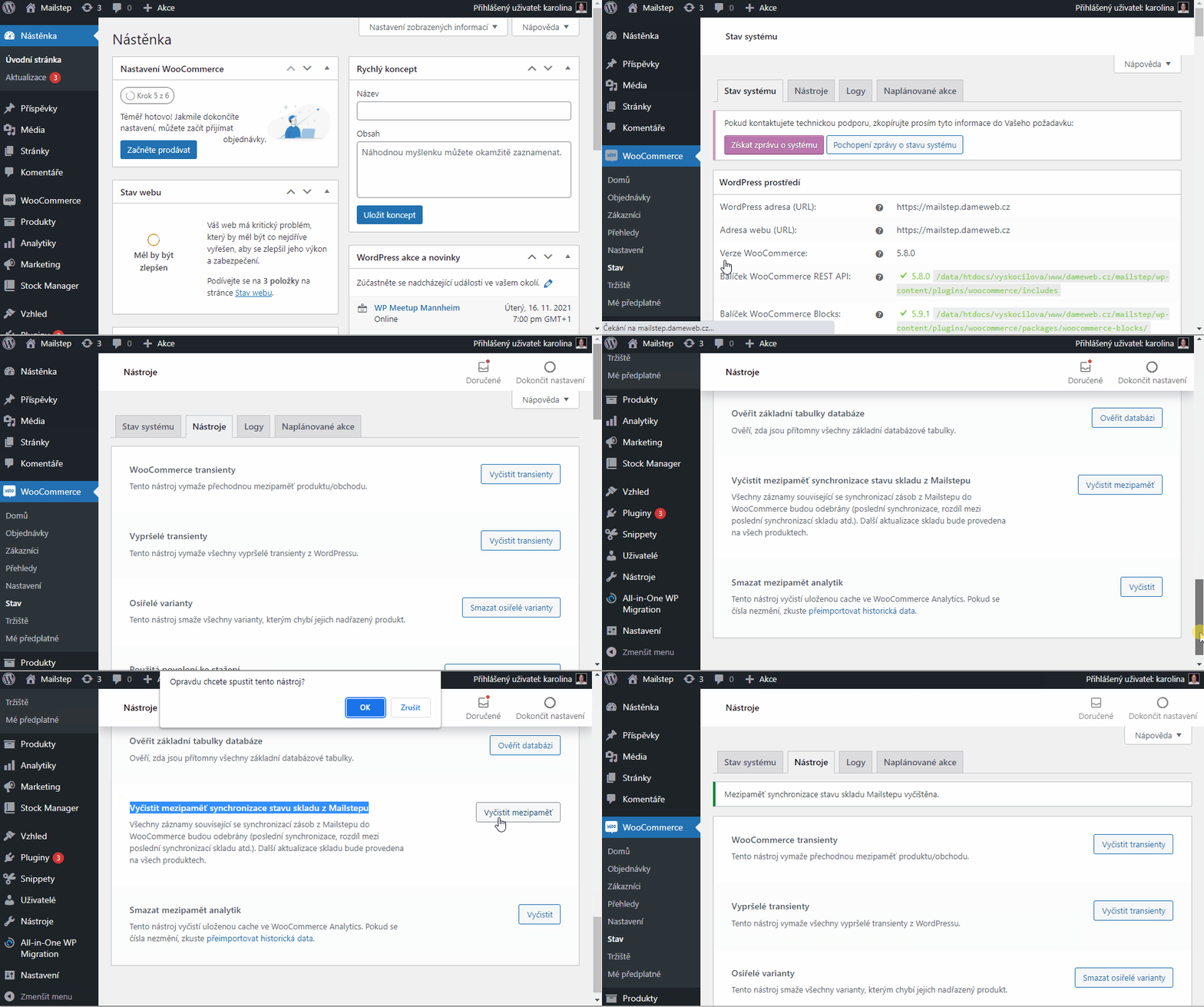
Comparing stock in Mailstep and WooCommerce
Section titled “Comparing stock in Mailstep and WooCommerce”If you want to verify that everything is transferred correctly from Mailstep to WooCommerce (without running the synchronization itself), you can run a check and look at the log. If the levels of products present in both warehouses differ, you’ll find the information in the log.
The listing also takes into account items not yet released that aren’t in Mailstep (“Pending payment” (Pending), “On hold” (On hold) and “Mailstep – Input error” (which you can optionally adjust with a filter see the documentation).
You’ll find it in WooCommerce → Status → Tools under the name Get information about stock synchronization with Mailstep.

Running the tool via WooCommerce → Status → Tools
You’ll find the results in the Mailstep log (regardless of whether you normally log everything or not) under the Logs tab (see How to view the log).
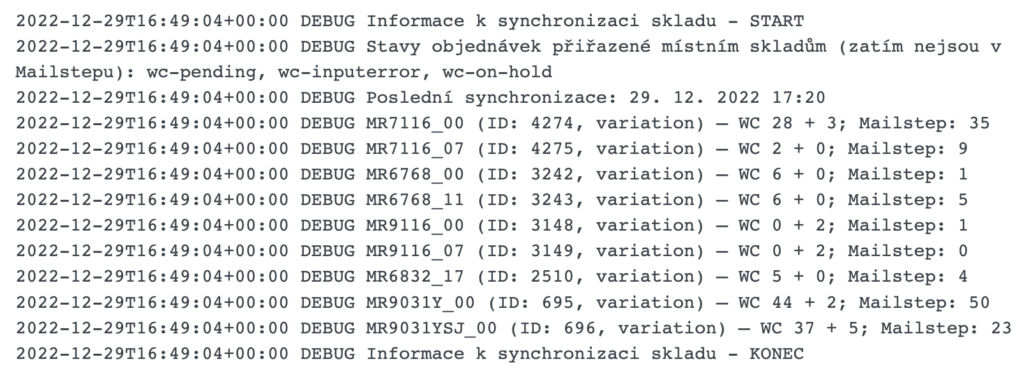
An example of a log where not everything is synchronized (WC in-stock count + unsent order statuses)

Stock status OK, but one product doesn’t have stock quantity synchronization enabled (only in stock / out of stock)

Everything is currently synchronized
Stock settings in WooCommerce
Section titled “Stock settings in WooCommerce”For the synchronization to work correctly, you must of course have stock enabled in WooCommerce, which you can check in WooCommerce → Settings → Products → Inventory.
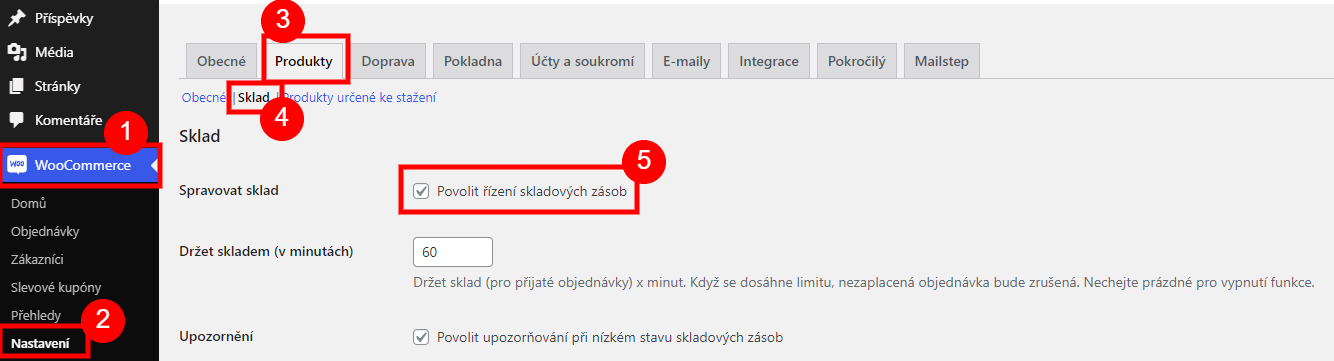
At this point, WooCommerce handles a product’s stock status with the In stock and Out of stock flags. If you want to manage product quantities in stock, you need to enable Stock management at product level for each product.
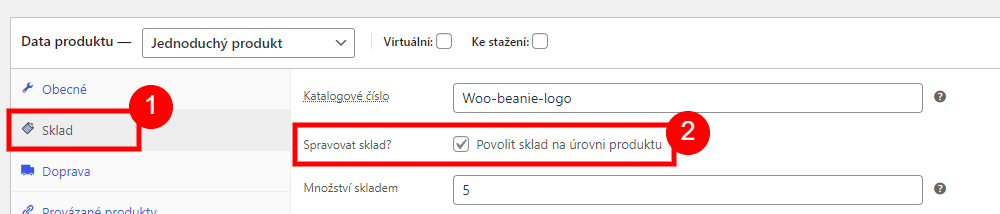
For more detailed information about stock behavior in WooCommerce, see the article by Vláďa Musílek here. For bulk editing you can use, for example, the WooCommerce Stock Manager plugin.

Was this page helpful?
Thanks for the feedback!
Sorry to hear that. Tell me what was missing and how I can help →