

Resending an order to Mailstep
You’re probably asking this in one of two situations – an error occurred, you fixed it, and you need to send the order again, correctly (see the first solution), or you activated sending later and need to send the orders to Mailstep retroactively. In that case, take a look at the second solution.
The order should have been sent, but an error occurred
Section titled “The order should have been sent, but an error occurred”If sending to Mailstep fails, you’ll see a note in the order detail containing the order error, looking roughly like this:
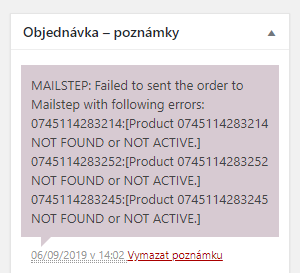
An order not sent to Mailstep
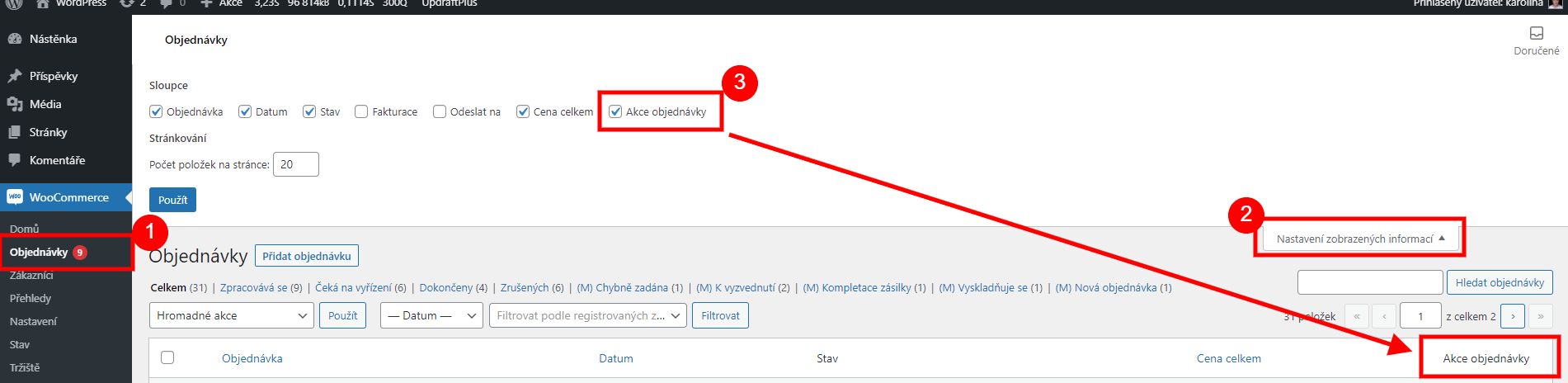
You’ll be able to send such an order to Mailstep manually (after fixing the error) using the red button in the Order actions column:

Resending the order (red button on the right)
The integration was activated after the order was created
Section titled “The integration was activated after the order was created”If you activated the Mailstep integration only after the order was created, you have to repeat the change to the status at which the order should be placed. You’ll find it in WooCommerce → Settings → Mailstep, roughly halfway down, in the Send to Mailstep setting.

The order status for sending to Mailstep
If this status is already active on the order, set a different one and then change it to the status for sending to Mailstep.
The problem described above has a fairly simple solution, however:
- In the Send to Mailstep setting, choose the Mailstep – Paid option and save the settings. You most likely have no e-mail sending set up for this status.
- In the orders overview, set this status on the orders you want to send to Mailstep – the orders are sent immediately.
- Change the Send to Mailstep setting back to the status you had there before.

Was this page helpful?
Thanks for the feedback!
Sorry to hear that. Tell me what was missing and how I can help →