

Changing billing details and downloading invoices
Billing details
Section titled “Billing details”Need to change or add billing details (for your entire Freemius account)? Fortunately that’s no problem at all — you can change them yourself in your profile.
- Log in to your account at https://users.freemius.com/ using the email you used to purchase the plugin.
- Go to the My Profile section and fill in the required details – Organization/Company name, Tax/VAT ID, Billing E-mail, Phone, Address Line, City / Town, ZIP / Postal code, Country.
- The changes are also applied retroactively to the invoices you’ll find in your Orders History, though of course adding a VAT ID after the fact doesn’t affect VAT that has already been charged — it only takes effect from your next invoice.
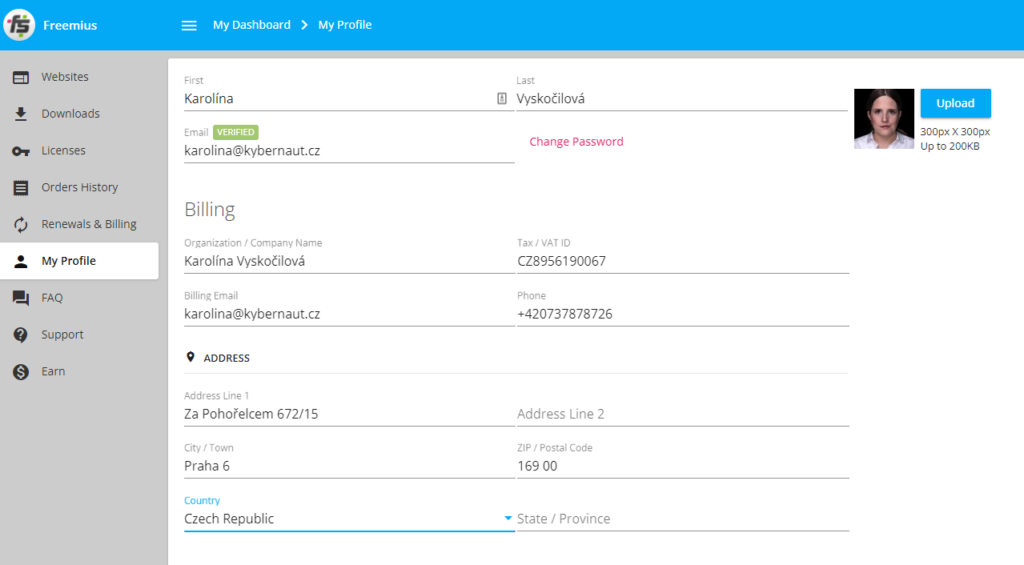
Setting your billing details
Invoices
Section titled “Invoices”After every purchase or subscription renewal, you’ll receive an email with an invoice from Freemius (on our behalf). If you have trouble finding that email, you can download all of your previous invoices from your account.
First you’ll need to log in with your credentials. If you don’t remember your password, you can follow these instructions to reset it.
Once you’re logged in, go to the Orders History tab. There you can download an invoice for each of your payments by clicking the blue invoice icon labeled Invoice.
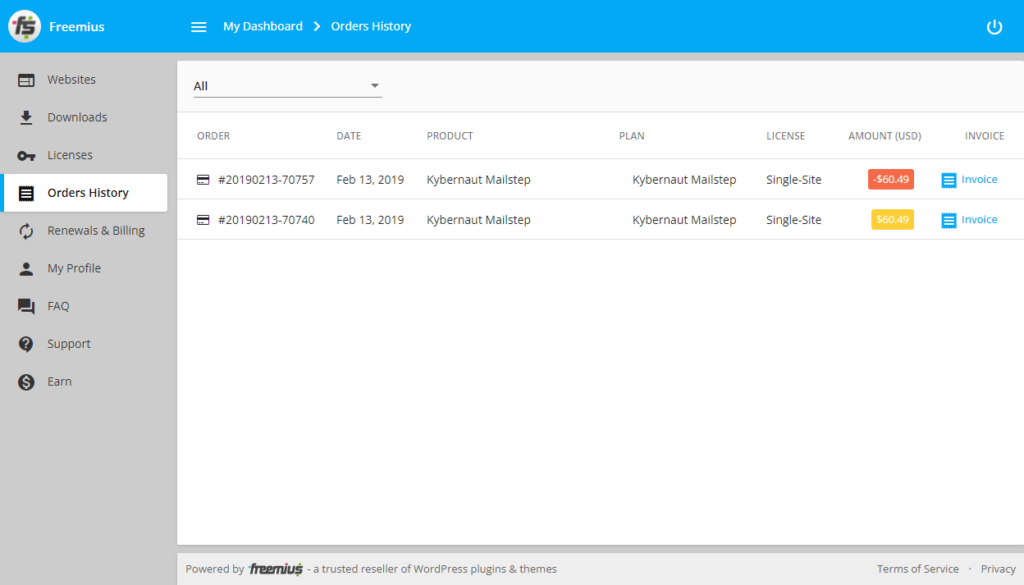
Overview of orders and invoices available for download

Was this page helpful?
Thanks for the feedback!
Sorry to hear that. Tell me what was missing and how I can help →