

Manually sending an order to Messenger
What is the order resend feature?
Section titled “What is the order resend feature?”Since version 2.6.0 of the Kybernaut Messenger plugin, you can manually send an order to the Messenger system even when automatic sending didn’t happen. This feature is especially useful in the following situations:
- Orders with backorder products – these orders aren’t sent automatically and wait for you to send them manually
- Orders with the “Failed” status – if a previous send attempt failed
- Orders with the “Processing” status – that haven’t yet been sent to Messenger for some other reason (e.g. when created manually in the admin)
When does the resend button appear?
Section titled “When does the resend button appear?”The “Resend to Messenger” button (an icon with a refresh symbol) appears automatically on orders that meet the following conditions:
- Shipping method used: The order must have the Messenger shipping method set (or another allowed shipping method added via the
kbnt_messenger_send_other_shipping_methodsfilter) - Order status: The order must be in one of these statuses:
- Processing
- Failed
- On hold – typically for backorder products
- Not yet sent: The order must not have already been successfully sent to Messenger (it has no assigned Messenger ID)
Backorder products
Section titled “Backorder products”Since version 2.6.0, the plugin automatically detects orders containing backorder products and does not send them to Messenger automatically. This lets you wait until the products are back in stock and then send the order manually.
How does the plugin detect backorder products?
Section titled “How does the plugin detect backorder products?”The plugin recognizes a backorder product in these cases:
- The product’s stock status is explicitly set to “On backorder” (onbackorder)
- The WooCommerce
is_on_backorder()method returnstrue - The product allows backorders and the ordered quantity exceeds the available stock
When an order with backorder products is detected, the plugin:
- Automatically adds a note to the order: “Order contains backorder products. Not automatically sent to Messenger. Use ‘Resend to Messenger’ when ready.”
- Does not send the order to Messenger automatically
- Shows the button for manual sending
How to manually send an order
Section titled “How to manually send an order”There are two ways to manually send an order to Messenger:
From the orders list
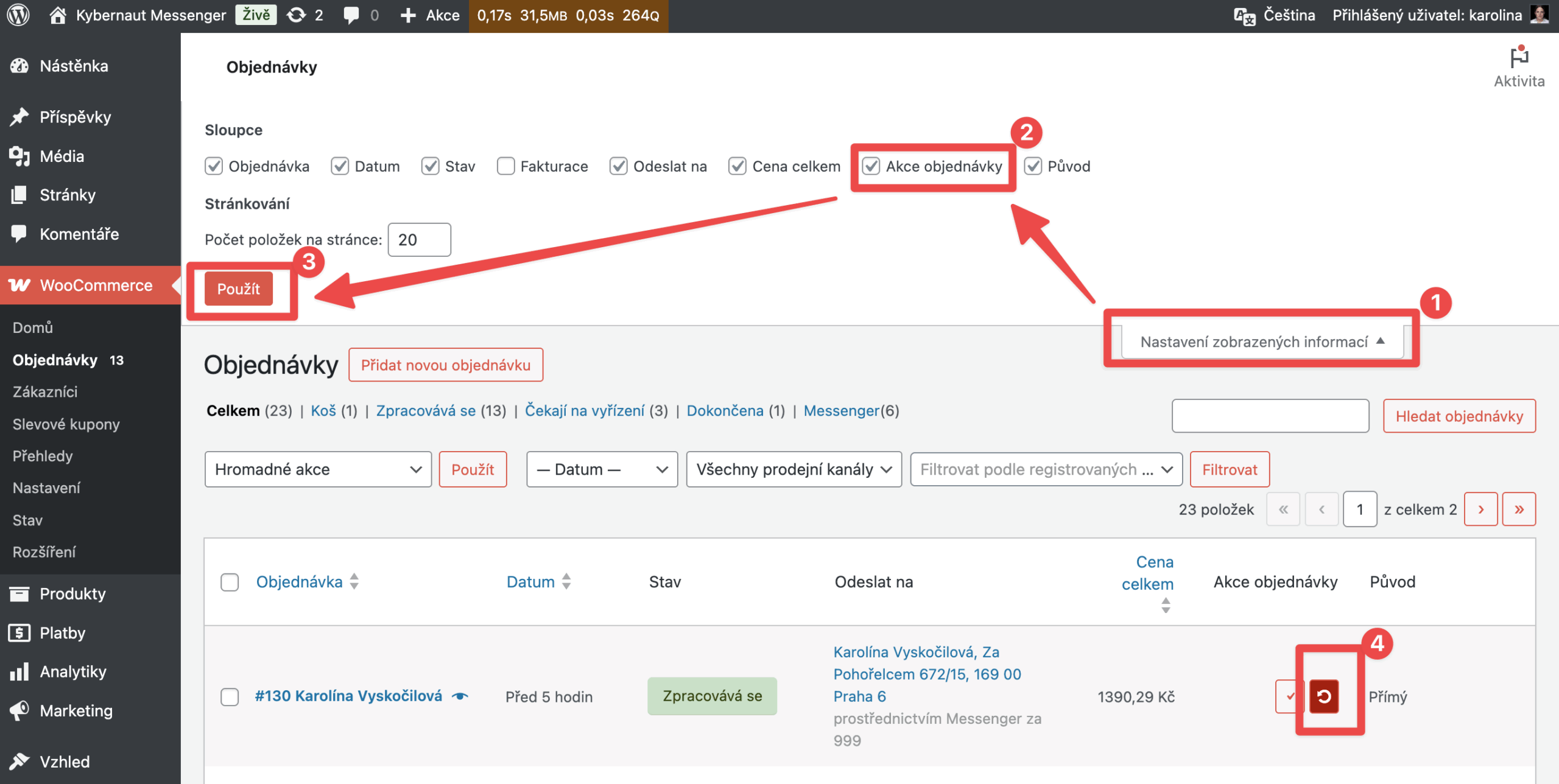
Section titled “From the orders list”- Go to WooCommerce → Orders
- Find the order you want to send
- In the Order actions column (on the right) there is an icon with a red resend button
- Click the red icon with the rotation (refresh) symbol
- The order is sent to Messenger immediately
From the order detail
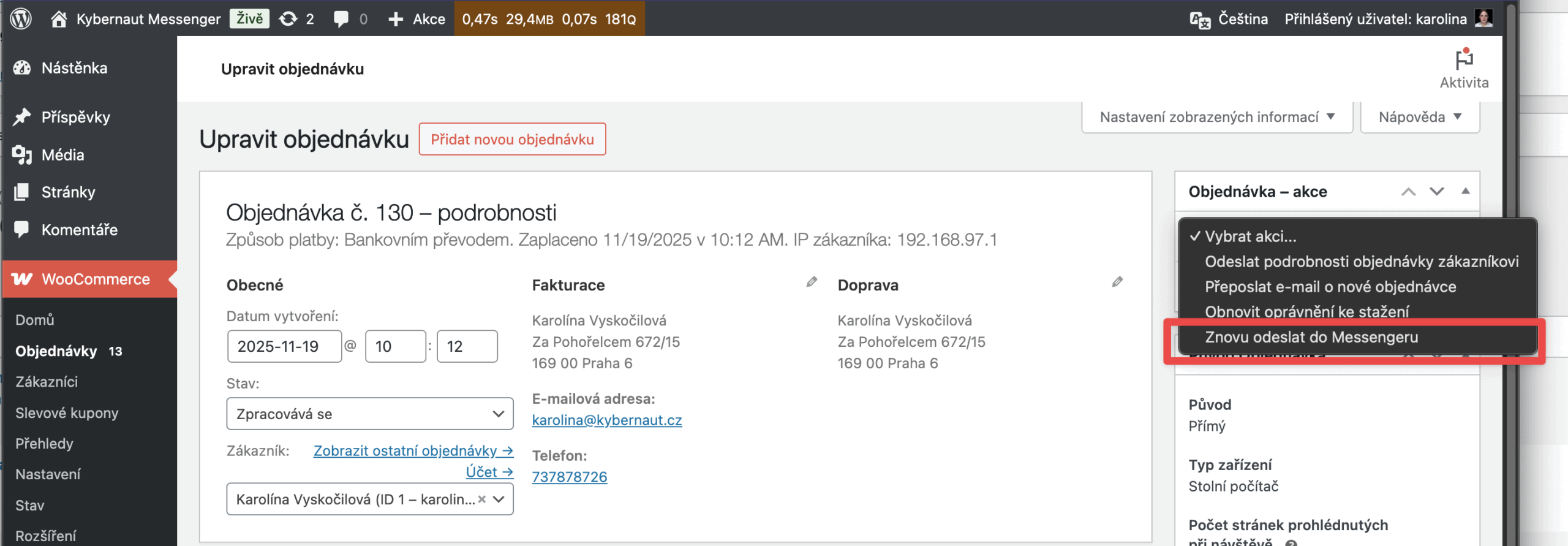
Section titled “From the order detail”- Open the order detail (click the order number)
- In the right-hand Order actions panel, find the dropdown menu
- Select “Resend to Messenger”
- Click the “Apply” button (the arrow)
- The order is sent to Messenger
What happens during a manual send?
Section titled “What happens during a manual send?”When you manually send an order:
- Send to the Messenger API: The plugin sends the order data (recipient, packages, cash on delivery, etc.) to the Messenger system
- Order note: A note is automatically added: “Order manually resent to Messenger.”
- Saving tracking information: After a successful send, the following are saved:
- The order’s Messenger ID (
_kbnt_messenger_order_id) - Tracking number (
_kbnt_messenger_tracking_code) - Shipment tracking URL (
_kbnt_messenger_tracking_url)
- Status change: The order changes status to “Messenger” (if the send succeeds) or “Failed” (if the send fails)
- Displaying tracking information: In the order detail, below the delivery address, the Messenger ID and a shipment tracking link are shown
Troubleshooting
Section titled “Troubleshooting”The button doesn’t appear
Section titled “The button doesn’t appear”Check whether:
- The order has the correct shipping method set (Messenger)
- The order has the correct status (Processing, Failed, or On hold)
- The order hasn’t already been successfully sent (it has no Messenger ID)
- The Kybernaut Messenger plugin is active and correctly configured
Sending fails
Section titled “Sending fails”- Check the API credentials:
- WooCommerce → Settings → Shipping → Messenger
- Verify the Username, Password, and Import Key
- Check the test mode:
- Make sure you have the right credentials for the test or production environment
- Enable debug mode:
- In the Messenger settings, enable “Debug mode”
- Try sending the order again
- Check the logs: WooCommerce → Status → Logs (look for files starting with “messenger-”)
An order with backorder products was sent automatically
Section titled “An order with backorder products was sent automatically”This behavior is unexpected as of version 2.6.0. Check:
- Are you using plugin version 2.6.0 or newer?
- Is the product actually set to “On backorder” in the inventory settings?
- Check the debug logs for more information
For developers
Section titled “For developers”If you want to enable manual sending for other shipping methods too, you first need to hook them into sending to Messenger using a filter.

Was this page helpful?
Thanks for the feedback!
Sorry to hear that. Tell me what was missing and how I can help →